
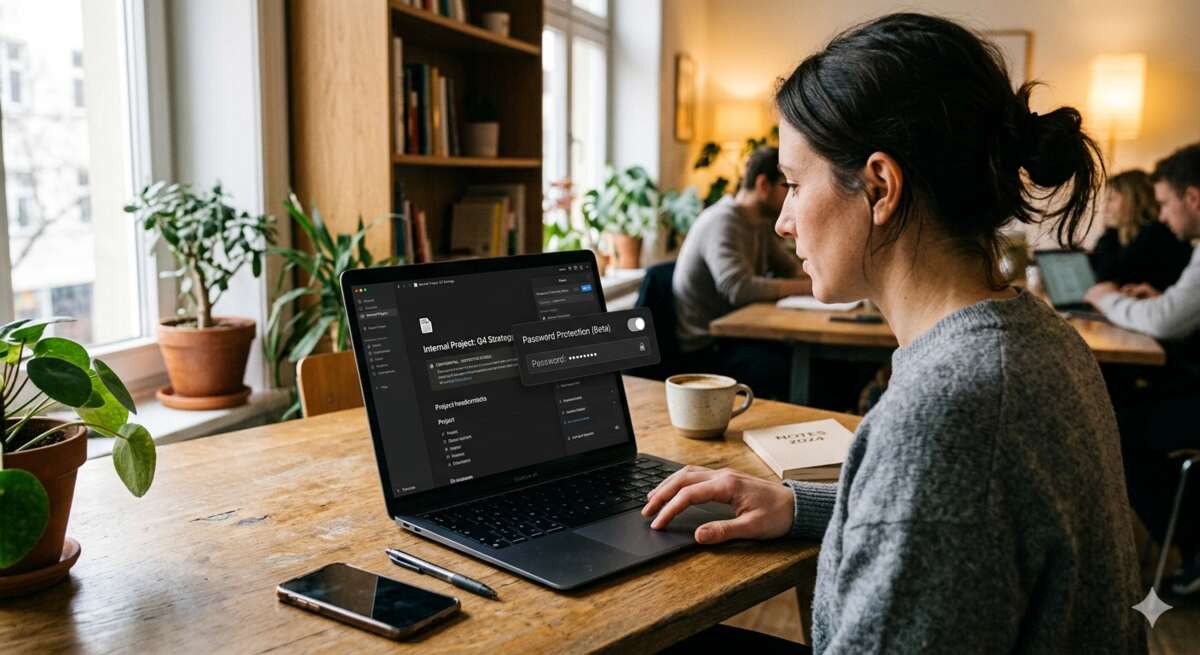

Let’s clear the fog first: Notion does not currently offer native password protection for individual pages. If you are searching for “password protect notion page,” “password protect notion,” or “notion password protect page,” the honest answer is that you can’t simply open a Notion page, toggle “Require password,” and create a password gate inside Notion itself. Notion’s own help documentation states that password-protecting a page is not available at the moment, and recommends private sharing with invited Notion users instead. Find out the best info about password protect notion page.
That does not mean you have no options. It means you need to choose the right kind of protection for your real goal. Are you trying to keep a client portal private? Share course materials with paying students? Stop teammates from editing a company wiki? Hide a personal journal? Publish a lightweight website but keep it gated? Each situation calls for a different approach.
This guide walks you through the practical options, the trade-offs, and the small permission details that matter most.
The quick truth: Notion has access control, not native page passwords
A password-protected page usually means this: someone opens a link, sees a password screen, enters a shared password, and then views the content. That is not how Notion’s native sharing model works.
Notion gives you several access states instead:
- A page can be private to you.
- A page can be shared with specific people.
- A page can be available to everyone in your workspace.
- A page can be available to anyone on the web with the link.
- A page can be published as a Notion Site.
The important distinction is this: “Anyone on the web with link” is not password protection. Notion describes this setting as allowing anyone who has the link to access the page, even if they are not part of your workspace and are not Notion users.
So if you want native Notion security, your best built-in route is not a shared password. It is private sharing with named people.
If you want the classic “enter a password to view this page” experience, you need a workaround. That usually means one of three things:
- Share the Notion page privately with invited users.
- Use a third-party password gate or Notion website builder.
- Move sensitive content into a more secure, purpose-built system.
The guru rule is simple: don’t pick the method that sounds clever; pick the method that matches the risk.
Why people want to password protect Notion pages
Notion sits in that fascinating middle ground between document, database, wiki, website builder, client portal, and personal operating system. That flexibility is exactly why password protection feels like it should exist.
Common use cases include:
- Client dashboards for freelancers or agencies
- Proposal pages and project timelines
- Paid course materials
- Membership resources
- Internal company policies
- Hiring scorecards or onboarding pages
- Personal journals
- Finance trackers
- Family planning documents
- Template delivery pages
- Research notes
- Private team documentation
But these use cases do not all require the same protection. A public template bonus page does not need the same security model as payroll data. A read-only client dashboard does not need the same controls as an internal operations hub. A personal journal is not the same thing as a published Notion Site.
That’s why “how do I password protect Notion?” is not really one question. It is a bundle of questions:
- Do visitors need a Notion account?
- Do you need a shared password or individual user access?
- Should people be able to edit, comment, duplicate, or only view?
- Could the content be harmful if the original link leaked?
- Do subpages contain anything more sensitive than the parent page?
- Do you need to revoke one person’s access without changing access for everyone?
- Do you need auditability, expiry, or authentication?
A password is convenient, but convenience is not the same thing as control.
Method 1: Share the page privately with invited people
If you need the safest native Notion approach, use Notion’s built-in sharing permissions.
This is the cleanest answer when your goal is: “I want only these specific people to see this page.” It is not password protection in the classic sense, but for many teams and client workflows, it is better.
How to privately share a Notion page
- Open the Notion page you want to protect.
- Click Share at the top of the page.
- Under general access, keep the page set to Only people invited.
- Enter the email address of the person you want to invite.
- Choose the right permission level.
- Send the invitation.
- Review the list of people with access.
- Remove anyone who should no longer have access.
Notion’s sharing controls allow you to invite people, change who has access, set permission levels, copy links, and open publishing settings from the Share menu.
When you invite someone outside your workspace to a page, Notion treats that person as a guest, and they need a Notion account to access the page if they do not already have one.
Why private sharing is stronger than a shared password
A shared password is easy to pass around. Once it spreads, you usually cannot tell who used it, who forwarded it, or who still has it saved in an old message.
Private Notion sharing gives you more direct control:
- You can invite people by email.
- You can remove one person without affecting everyone else.
- You can choose whether someone can view, comment, edit, or have broader access.
- You can avoid making the page publicly available.
- You can keep access tied to accounts instead of a loose password.
This is usually the right approach for:
- Client workspaces
- Internal docs
- Contractor access
- Team SOPs
- Draft pages
- Private databases
- Personal pages shared with family or collaborators
Permission levels matter
When you share a page, do not casually give edit access just because someone needs to read it. Think in layers:
- Can view is best for simple reading.
- Can comment is best for feedback without direct edits.
- Can edit is best for collaborators who need to update the page.
- Full access should be reserved for people who truly need to manage sharing and permissions.
Notion’s permissions are designed so collaborators can access content at the level you choose, from viewing to editing and broader access.
A good rule: start with the least access someone needs. Upgrade later if necessary. Downgrading access after someone has already copied information is much less useful.
The limitation of private sharing
Private sharing is not frictionless. The recipient may need to create or use a Notion account. For clients, students, or casual visitors, that extra step can feel heavier than simply entering a password.
That is why many creators and businesses look for third-party tools. They want the ease of a public link with the feeling of a private gate.
That convenience is real. So are the trade-offs.
Method 2: Use a third-party password gate for a public Notion page
If you want a visitor to open a link and enter a password before seeing your Notion content, you will generally need a third-party tool.
The basic workflow looks like this:
- Create the Notion page.
- Publish it or make it accessible in a way the tool requires.
- Add the Notion page link to the third-party tool.
- Set a password or access rule.
- Share the protected link generated by the tool.
- Test access in a private browser window.
- Keep the original Notion sharing settings under review.
Some tools are built specifically around password-protected Notion links. Others are Notion website builders that include password protection as one feature among many. For example, Sotion describes itself as a way to turn Notion pages into a password-protected site, and Super documents password protection for Super sites.
The biggest security caveat
Here is the part many tutorials gloss over: if your Notion page is still public at the original Notion link, then the password gate only protects the new gated link, not necessarily the underlying public Notion URL.
That matters because Notion’s own public-link setting allows anyone with the link to access the page. So if your third-party setup depends on leaving the original page available to “anyone with the link,” you must treat the original Notion link as sensitive too.
Some tools may proxy, mask, or otherwise reduce exposure of the original Notion URL. Others may simply sit in front of a page that remains reachable if someone has the source link. Before relying on any tool, ask this one plain question:
Can someone bypass the password if they get the original Notion link?
If the answer is yes, the tool may still be useful for low-risk gating, but it is not a vault.
When a third-party password gate makes sense
A third-party password gate can be a good fit for:
- Low-risk client portals
- Course resource hubs
- Bonus content pages
- Template delivery pages
- Event pages
- Team resource pages that do not contain highly sensitive information
- Lightweight membership pages
- Portfolio pages shared with selected reviewers
It is less appropriate for:
- Password lists
- Banking details
- Government IDs
- Medical records
- Legal evidence
- Trade secrets
- Sensitive HR documents
- Regulated customer data
- Anything that would cause serious harm if copied or leaked
The writing-guru warning: a password gate is a velvet rope, not a bank vault. It creates a boundary. It does not magically make public web content suitable for secrets.
What to look for in a third-party tool
Before choosing a tool, evaluate it like a responsible publisher, not like someone dazzled by a shiny dashboard.
Look for:
- Page-level password protection
- Site-wide password protection if you need to gate everything
- The ability to hide or protect the original Notion link
- Custom domains if brand trust matters
- Expiring links or expiry dates
- Password rotation
- Analytics or access logs if you need visibility
- No-index controls for search visibility
- Clear privacy policy
- Clear explanation of what content the tool can access
- Easy revocation
- Good support documentation
- Export or migration options if you leave later
Avoid relying on a tool if:
- You cannot understand how it protects the page.
- It requires more access to your workspace than seems necessary.
- It makes vague security claims without documentation.
- It leaves the original public page exposed and does not explain that risk.
- It has no clear way to remove or rotate access.
A good password-protection workflow should feel boringly clear. If you need detective work to understand what is actually protected, slow down.
Method 3: Use a Notion website builder with password protection
Another route is to convert your Notion content into a website powered by Notion, then use the website builder’s access features.
This method is popular with creators, consultants, agencies, and operators who want Notion to remain the content management system while the front-end website handles branding, domains, navigation, and gating.
The general setup looks like this:
- Build your content in Notion.
- Connect the Notion page to a Notion website builder.
- Configure the site design and domain.
- Enable password protection for the whole site or selected pages.
- Publish the site.
- Share the protected site URL instead of the raw Notion URL.
- Test the site as a visitor.
This approach is especially useful when presentation matters. A client portal, paid resource library, or members-only hub may feel more polished on a branded domain than on a raw Notion page.
Site-wide protection vs page-level protection
There are two common models:
- Site-wide protection: visitors need a password before seeing anything on the site.
- Page-level protection: only certain pages are behind a password.
Site-wide protection is simpler. Page-level protection is more flexible.
Use site-wide protection when:
- The entire site is private.
- Every page is for the same audience.
- You do not want to manage public and private sections separately.
Use page-level protection when:
- You have a public landing page and private resources.
- You want some pages indexed and others hidden.
- Different audiences need access to different pages.
- You sell or deliver multiple resources.
The Notion Sites angle
Notion itself lets you publish pages as Notion Sites. Published Notion Sites can be used for blogs, resumes, portfolios, job listings, landing pages, and other public web content. Notion also notes that paid plans unlock additional customization such as SEO-related customization, themes, Google Analytics integration, and custom-domain options through an add-on.
But the key word is public. Notion explains that when you publish a Notion Site, anyone on the web can view it.
So a Notion Site is not, by itself, a password-protected site. If you need password gating, you either use private sharing inside Notion or add an external layer.
Watch your subpages
This is one of the easiest places to make a mistake.
Notion states that publishing a Notion page to the web also publishes its subpages by default, and that subpage permissions can be restricted to hide them from public view.
That means you should never publish a parent page without checking what lives underneath it.
Before publishing or gating a Notion page, inspect:
- Child pages
- Linked databases
- Database pages
- Synced blocks
- Embedded documents
- Attachments
- Hidden toggles
- Archived notes copied into the page
- Template buttons or duplicated sections
A page can look clean on the surface and still expose old content through a subpage or database item.
Method 4: Keep sensitive content out of public Notion pages
Sometimes the best way to password protect a Notion page is to not use a public Notion page for that content at all.
That may sound blunt, but it is the right answer for high-risk information.
If the content is truly sensitive, use a system designed for secure storage, encryption, identity controls, and auditability. For passwords, use a dedicated password manager. For confidential company materials, use your organization’s approved systems. For regulated data, follow your legal, compliance, or IT requirements.
NIST recommends using password managers to create and store highly unique passwords, and notes that longer passwords are preferable when you must create one yourself.
This is not anti-Notion advice. It is pro-judgment advice.
Notion is excellent for organization, knowledge management, lightweight databases, documentation, and collaboration. But a productivity workspace is not automatically the correct place for every secret you possess.
A practical sensitivity test
Ask yourself:
- Would I be comfortable if this page were accidentally forwarded?
- Would this content create legal, financial, or personal harm if exposed?
- Does it include credentials, private keys, recovery codes, or personal IDs?
- Does my company have a policy about where this data must live?
- Would I need an audit trail if someone accessed it?
- Would a shared password be too weak for this material?
If the answer makes you uneasy, don’t solve the problem with a prettier password screen. Move the content to the right system.
Method 5: Use Notion’s native settings to reduce exposure
Even though Notion does not provide native page passwords, it does give you settings that reduce accidental exposure.
These are not substitutes for password protection, but they are essential hygiene.
Turn off public access when you do not need it
If a page no longer needs to be public, remove public access.
Notion explains that even if a Notion Site is unpublished, the page could still be accessible if general access is set to “Anyone on the web with link.” To fully remove public access, Notion says to remove that web-link access from the Share menu.
This is a crucial distinction:
- Unpublishing a Notion Site removes the published site.
- Removing “Anyone on the web with link” removes public link access.
Do both when your goal is privacy.
Be careful with search engine indexing
When you publish a Notion Site, Notion lets you control whether the site is discoverable on the web through search engine indexing settings.
For private or semi-private content, do not turn on indexing. But also understand this: turning off search indexing is not the same as access control. A page can be unindexed and still accessible to anyone with the link.
Think of indexing as visibility. Think of permissions as access. They are related, but they are not the same.
Turn off duplicate-as-template when needed
If you publish Notion content and do not want visitors duplicating it into their own workspace, turn off duplication.
Notion explains that public pages can be duplicated into another workspace when duplication is enabled, and provides a setting to prevent duplication for public pages
This is especially important for:
- Paid templates
- Course workbooks
- Internal frameworks
- Client-specific dashboards
- Proprietary checklists
- Operating systems or SOP libraries
Again, turning off duplication does not prevent someone from copying text manually or taking screenshots. But it does remove the easy one-click duplication path.
Review contributor metadata
Notion notes that when a page is published to the web or shared with “Anyone on the web with link,” the webpage metadata can include names, profile photos, and email addresses associated with Notion users who contributed to the page.
That detail matters for public pages. Before publishing, consider whether contributors are comfortable being associated with that page and whether the metadata creates privacy concerns.
Check inherited access
Notion pages can inherit access from parent pages, teamspaces, groups, or workspace-level settings. A page may feel private because you rarely open it, while still being available to more people than you expect.
Before sharing a sensitive page, inspect:
- General access
- People invited directly
- Groups with access
- Teamspace access
- Parent page permissions
- Subpage permissions
- Public web access
- Published site status
This habit saves embarrassment. It also saves cleanup later.
What “Lock page” does — and does not — do
Notion has a Lock page feature, but it is frequently misunderstood.
Locking a page makes it read-only to help prevent accidental edits. Notion explains that a locked page prevents changes until the lock is turned off, and that anyone with full or edit access can turn the page lock off.
So page lock is not a password. It is not a privacy feature. It is not an access wall.
Use page lock for:
- Finalized documentation
- Company policies
- SOPs
- Meeting note templates
- Published internal guides
- Reference pages that should not be casually edited
Do not use page lock for:
- Hiding content
- Password protecting a page
- Restricting viewers
- Securing confidential information
- Preventing editors from intentionally changing something
The same idea applies to database locks. Notion’s database lock helps prevent people from changing views and properties, while still allowing data entry in the database.
That is useful. It is not secret storage.
A decision framework: which option should you choose?
Here is the simplest way to choose.
If the content is private and the audience is known
Use native Notion sharing.
Best for:
- Clients
- Team members
- Contractors
- Advisors
- Collaborators
- Family members
Why: you can invite specific people, control permissions, and revoke access individually.
If the content is low-risk and you want easy visitor access
Use a third-party password gate or Notion website builder.
Best for:
- Resource libraries
- Paid bonuses
- Event pages
- Light membership content
- Portfolio review pages
- Course handouts
Why: visitors get a simple password experience without needing full Notion collaboration.
If the content is public but should not be indexed
Use Notion publishing settings carefully.
Best for:
- Public pages shared only by direct link
- Early landing pages
- Resume pages
- Non-sensitive announcements
- Draft resources you do not want searchable yet
Why: you can publish quickly while controlling search discoverability. But remember, unindexed does not mean private.
If the content is sensitive
Do not rely on public pages or casual password gates.
Best for:
- Credentials
- Financial records
- legal or medical data
- private IDs
- highly confidential company information
- anything regulated
Why: this material deserves stronger systems, not just a Notion workaround.
If the problem is accidental editing
Use Lock page or permissions.
Best for:
- Internal documentation
- wikis
- finalized policies
- standard operating procedures
- shared reference material
Why: page locking and view-only permissions solve editing problems, not viewing problems.
Step-by-step: the safest native setup for a private Notion page
If you do not need a public password screen, this is the setup I recommend.
Step 1: Move the page to the right place
If the page is personal, keep it in your private area. If it belongs to a team, put it in the correct teamspace or folder structure. Do not leave sensitive pages under broad team pages unless everyone there should have access.
Step 2: Open the Share menu
Click Share at the top of the page. Review everyone and everything that can access the page.
Look for:
- Named people
- Groups
- Teamspaces
- Workspace access
- Public web links
- Published site settings
Step 3: Set general access to “Only people invited”
This is the key native privacy setting. It prevents casual workspace-wide or public-link access.
Step 4: Invite only the people who need access
Add users by email. Choose the lowest permission that still lets them do their job.
For most protected pages, start with Can view.
Step 5: Check subpages
Open every important subpage. Confirm permissions there too. If a subpage should be more restricted than the parent, adjust it.
Step 6: Test access
Use a separate browser, an incognito window, or a test account where appropriate. Do not assume the page behaves as expected just because the Share menu looks clean.
Step 7: Review periodically
Set a recurring reminder to audit access. Remove old clients, former contractors, outdated guest accounts, and anyone who no longer needs the page.
Security is not a one-time button. It is housekeeping.
Step-by-step: a practical third-party password setup
If you need the classic password-gated experience, use this careful workflow.
Step 1: Prepare the Notion page
Before connecting it to any tool, clean the page.
Remove:
- Sensitive drafts
- Hidden notes
- Old comments that should not be visible
- Unneeded subpages
- Confidential database entries
- Internal-only toggles
- Private attachments
The page you connect should contain only what visitors are meant to see after passing the gate.
Step 2: Decide whether the page is low-risk enough
If the page contains anything truly sensitive, pause. A third-party password gate may not be appropriate.
If the page contains resource content, general client information, public-facing deliverables, or low-risk membership materials, proceed.
Step 3: Choose the tool
Pick a tool based on your protection needs, not just its screenshots.
Ask:
- Does it support page-level protection?
- Does it support site-wide protection?
- Does it hide or proxy the original Notion page?
- What happens if someone has the original Notion URL?
- Can I rotate the password?
- Can I remove access quickly?
- Can I use a custom domain?
- Does it expose analytics?
- What data does it store?
- How do I cancel or export?
Step 4: Connect the Notion page
Follow the tool’s setup instructions. This may involve copying a public Notion link, connecting a workspace, or selecting a page.
Use the minimum access needed. If a tool requests broad workspace permissions, make sure you understand why.
Step 5: Set the password
Use a long, unique password. NIST recommends passwords of at least 15 characters when you need to create one yourself, and password managers can help generate unique passwords.
For shared page passwords, avoid obvious choices like:
- client name
- project name
- company name
- “welcome”
- “password”
- the current year
- the page title
A shared password does not need to be beautiful. It needs to be hard to guess and easy to rotate.
Step 6: Share the protected link carefully
Do not send the original Notion link if your goal is to gate access. Send the third-party protected link.
When sharing the password, avoid sending the link and password in the same casual thread if the content is at all sensitive. The FTC advises businesses not to share passwords by phone, text, or email in its cybersecurity basics guidance.
For low-risk content, practicality may win. For higher-risk content, separate the link and password, use a password manager’s sharing feature, or use account-based access instead.
Step 7: Test like a stranger
Open the protected link in a private window. Confirm:
- The password screen appears.
- The correct page loads after entry.
- Wrong passwords fail.
- Subpages behave as expected.
- The original Notion link is not exposed in an obvious way.
- Search engines are not invited to index private content.
- Duplicate controls are set appropriately.
Step 8: Rotate and retire
Change the password when:
- A client project ends.
- A cohort finishes.
- A contractor leaves.
- The link was sent to the wrong person.
- The audience changes.
- You suspect the password was forwarded.
If the page no longer needs to exist, unpublish it and remove public access.
Password hygiene for Notion-adjacent workflows
Even when the password protection layer is outside Notion, password hygiene still matters.
Use these rules:
- Use long, unique passwords.
- Avoid reusing passwords across pages, clients, or cohorts.
- Store passwords in a password manager.
- Rotate shared passwords when access groups change.
- Do not put the password directly on the Notion page it protects.
- Do not use the same password as your Notion account.
- Enable two-step verification on your Notion account.
- Remove old guests and stale access.
- Prefer account-based access for sensitive content.
Notion offers two-step verification for account security across all plan types, and its help documentation recommends using it as an extra layer to protect workspace contents.
For businesses, SAML SSO is available on Notion Business and Enterprise plans, and Notion describes it as a way to use a single authentication source for access and user management.
Do not overlook account security. A perfectly configured page is still vulnerable if the account that owns it is weakly protected.
Enterprise and team controls
If you manage a team workspace, individual page settings are only part of the story. You also need workspace and teamspace governance.
Notion Enterprise workspace owners can prevent members from publishing Notion Sites, forms, and public links by enabling a security setting that disables publishing sites, forms, and public links.
Teamspace settings can also affect sharing behavior. Notion describes teamspaces as areas with access settings such as open, closed, and private, with additional controls on some plans.
For teams, create a simple sharing policy:
- Which pages may be public?
- Who can publish Notion Sites?
- Who can invite guests?
- Which teamspaces are private?
- What data is forbidden from public pages?
- How often should access be audited?
- What happens when someone leaves?
- Who reviews third-party tools?
The point is not bureaucracy. The point is consistency. Most sharing accidents happen because every person invents their own rules.
Common mistakes to avoid
Mistake 1: Thinking “anyone with the link” means private
It does not. It means anyone with the link can access the page. That may be acceptable for low-risk content, but it is not password protection.
Mistake 2: Publishing a parent page without checking subpages
Published Notion Sites can include subpages by default. Always check what is underneath the page before you publish or gate it.
Mistake 3: Using Lock page as a privacy tool
Lock page helps prevent edits. It does not hide content from viewers with access.
Mistake 4: Sending the raw Notion link and the password together
If you are using a third-party gate, share the protected link, not the raw Notion source link. If the content is sensitive, treat the password as a secret too.
Mistake 5: Forgetting to remove public access after unpublishing
Unpublishing a Notion Site does not automatically guarantee every public access path is gone. Check and remove “Anyone on the web with link” when the page should no longer be public.
Mistake 6: Using the same password for every client or cohort
Shared passwords spread. Use separate passwords for separate audiences so you can rotate one without disrupting everyone.
Mistake 7: Storing highly sensitive data in a lightly gated page
If the content could cause serious harm if exposed, use a secure system instead.
A simple checklist before sharing a protected Notion page
Use this checklist before you send the link.
- The page contains only content the audience should see.
- Subpages have been reviewed.
- Linked databases have been reviewed.
- Attachments have been reviewed.
- General access is set intentionally.
- Public web access is either off or deliberately required.
- Search indexing is off for non-public content.
- Duplicate-as-template is off if duplication is not allowed.
- The password is long and unique.
- The protected link has been tested in a private browser window.
- The original Notion link is not being shared accidentally.
- Access removal is documented.
- A review date is scheduled.
This may feel like overkill the first time. It will feel like wisdom the first time you catch a hidden subpage before a client does.
So, can you password protect a Notion page?
Password protection for the Native Notion page is not currently available. That is the answer in one sentence.
But you can still protect Notion content in practical ways:
- Use private sharing for the strongest native Notion access control.
- Use third-party password gates for low-risk public pages that need a password screen.
- Use Notion website builders when branding, domains, and site-level gating matter.
- Use page locks only to prevent accidental edits, not to hide content.
- Use secure external tools for truly sensitive information.
The best method depends on what you are protecting, who needs access, and what would happen if the link spread.
If you remember only one thing, make it this: Notion privacy is permission-based, not password-based. Once you understand that, choosing the right workflow becomes much easier.
